
User-guidePlatform Management
Workspaces
Manage every workspace on the platform as a platform administrator
Overview
The Workspaces tab is the default landing page of Platform Management. It lists every workspace on the platform, regardless of who owns it, and is only visible to users with the platform admin role.
To access it, go to Platform Management in the sidebar — it opens on this tab by default.
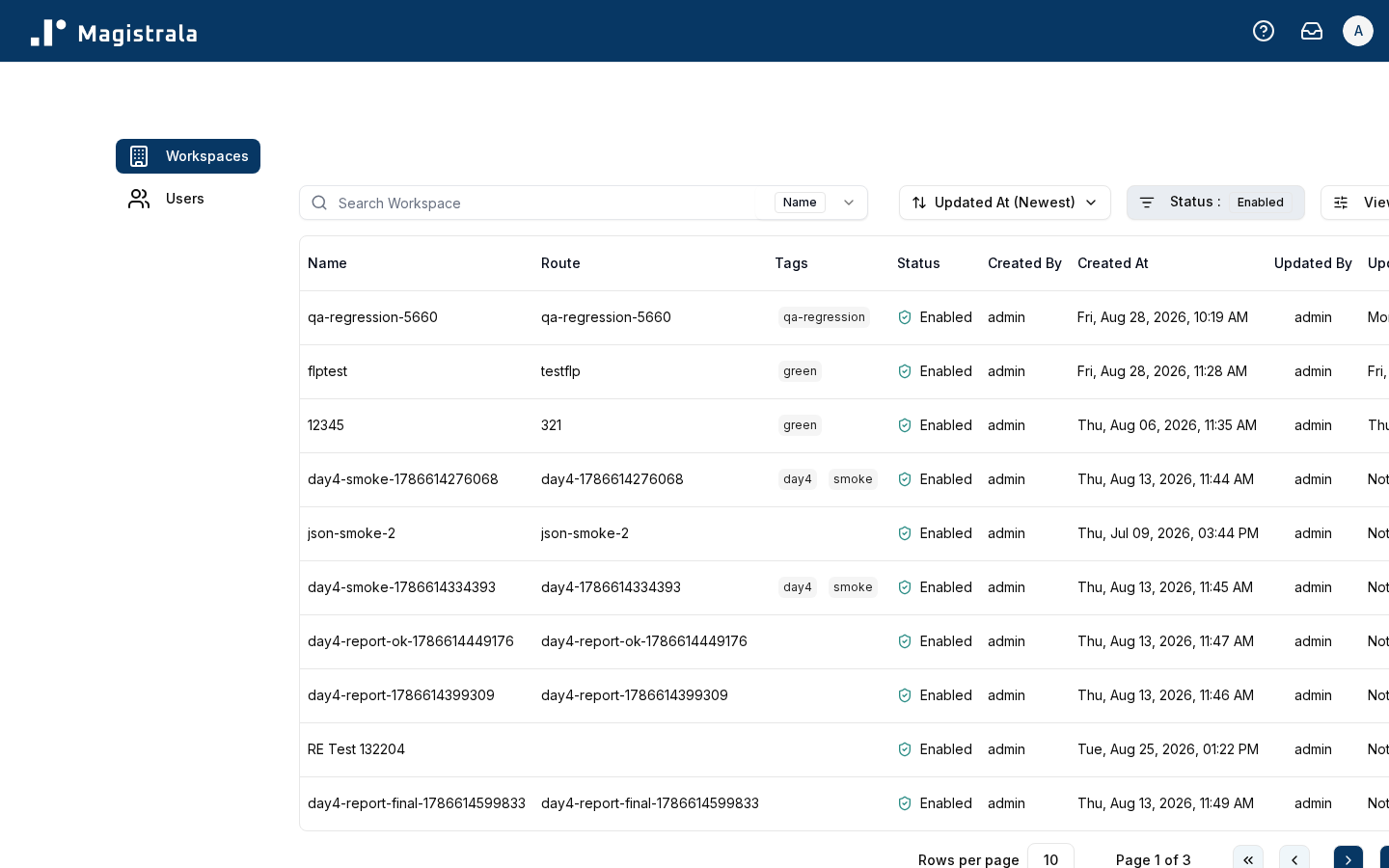
Workspaces table
| Column | Description |
|---|---|
| Name | The workspace's display name |
| Route | The workspace's URL route/slug |
| Tags | Free-form tags on the workspace |
| Status | enabled, disabled, or frozen |
| Created By | Who created the workspace |
| Created At | When it was created |
| Updated By | Who last updated it |
| Updated At | When it was last updated |
The table can be searched by name and filtered by tags.
Manage a workspace
Each row has an actions menu with:
| Action | Description |
|---|---|
| Log In | Signs you into that workspace directly, as a platform admin |
| Copy ID | Copies the workspace's ID to your clipboard |
| Enable/Disable | Toggles the workspace's status |
| Freeze | Permanently locks the workspace so it's no longer accessible |
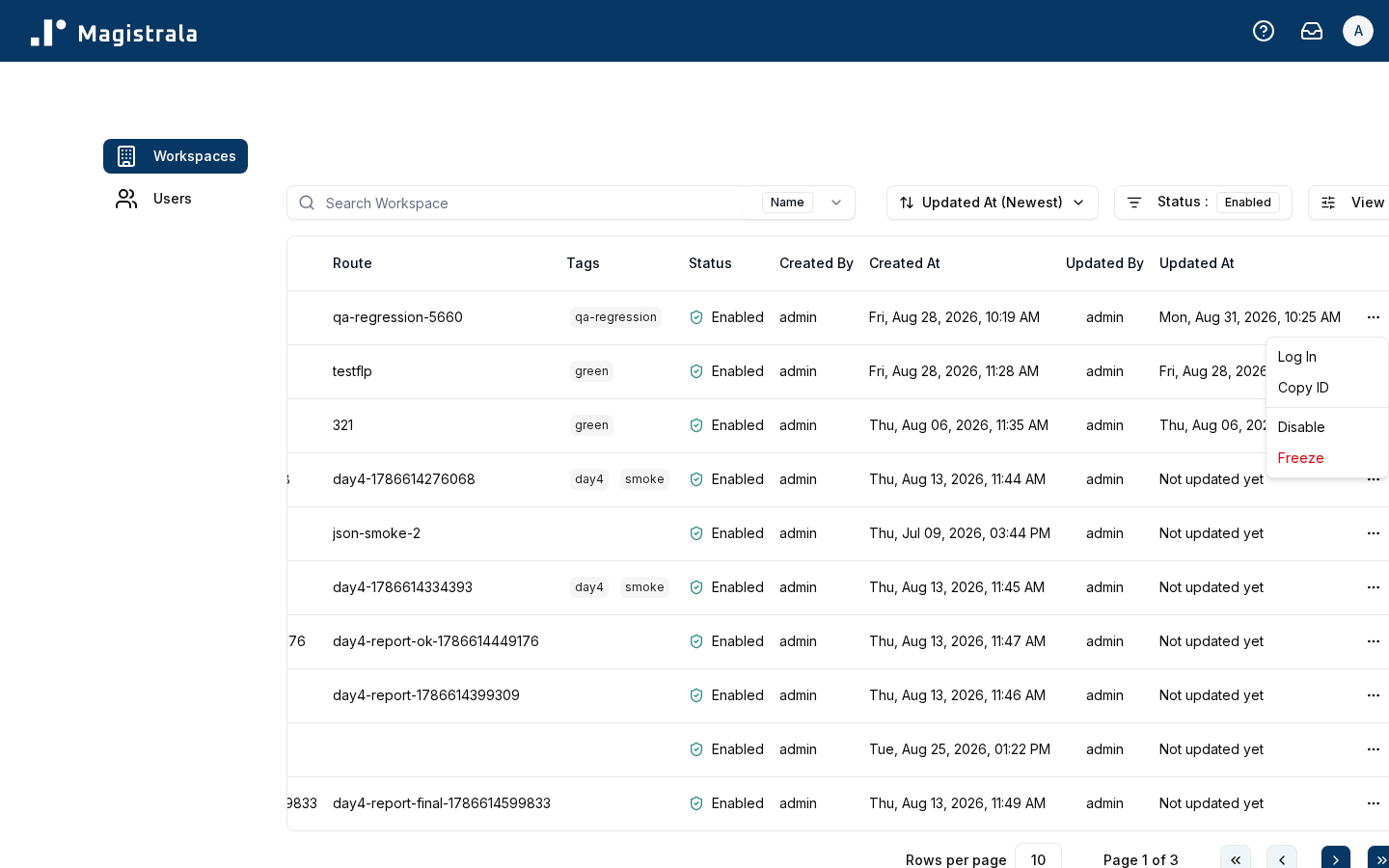
Freezing a workspace cannot be undone. The dialog requires you to type the workspace's exact name to confirm before it's applied, and the option disappears once a workspace is already frozen.
There's no dedicated workspace detail page from here — actions are performed directly from the table row.