
Personal Access Tokens
Manage access tokens and scopes securely
Overview
Personal access tokens are an alternative to using bearer tokens to perform various operations on the entities.
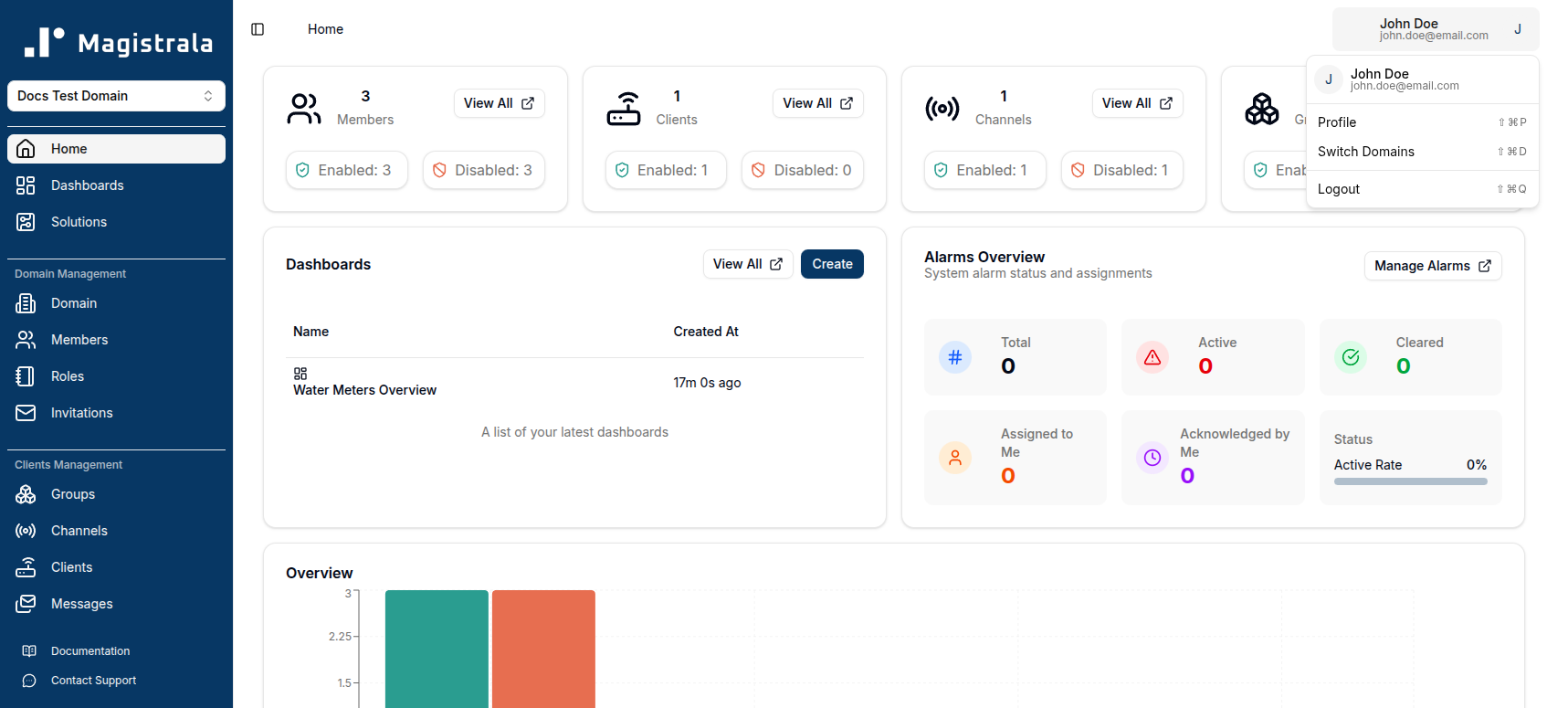
To access personal access tokens (PATs) click on Personal Access Token tab on the user profile picture or avatar at the top right.
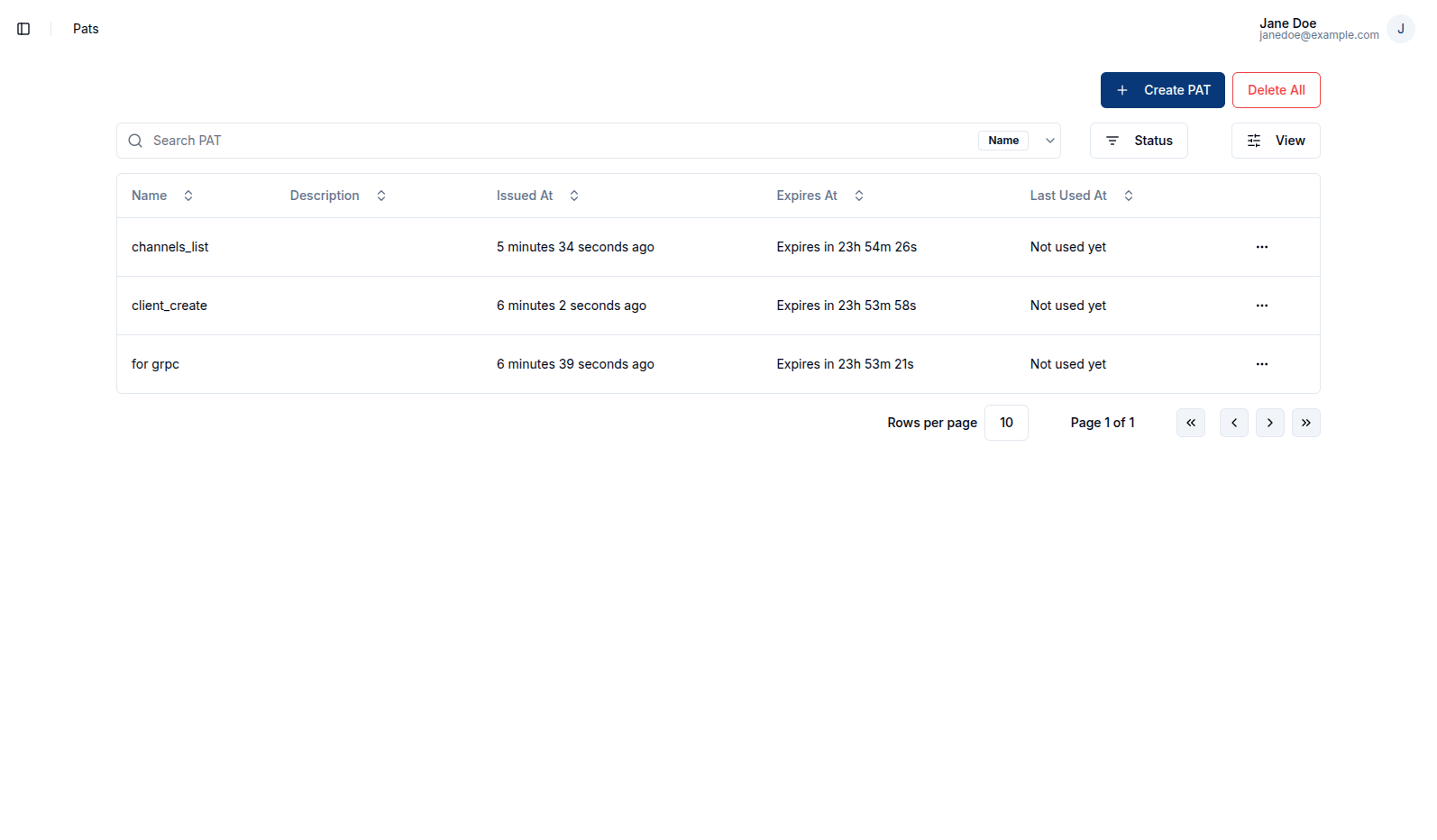
Create a PAT
To create a PAT, click on the + Create PAT button.
This action redirects the user to the PAT creation page, where required details can be provided. The name should be a recognizable label for the token, and the duration sets the period for which the token will remain valid. Additionally, the user can enter an optional description and define scopes, which specify the operations the PAT is allowed to perform. Each PAT can be restricted to specific operations on particular entities, providing fine-grained access control.
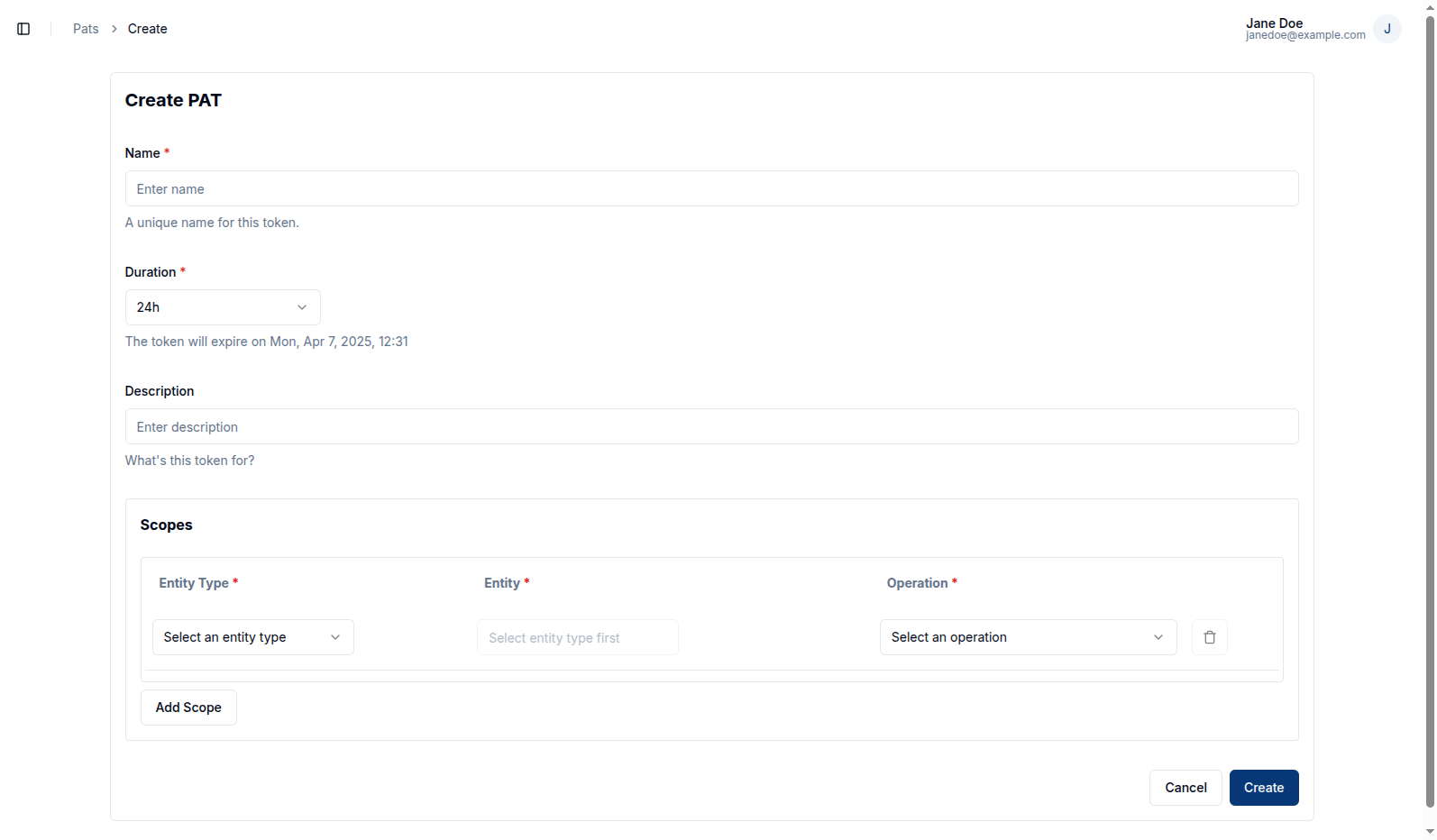
Available scope entities are Clients, Channels, Groups, Workspace, Rules, Reports, and Bootstrap. Each entity type exposes a distinct set of operations:
Clients
The scope entity is still labeled Clients in the PAT scope selector even though this same entity is called Device elsewhere in the product — the rename hasn't reached this part of the UI yet.
| Operation | Description |
|---|---|
create | Creates a client |
view | View a client |
update | Update client information |
update_tags | Update client tags |
update_secret | Update client secret/credentials |
enable | Enable a client |
disable | Disable a client |
delete | Delete a client |
set_parent_group | Assign a parent group to a client |
remove_parent_group | Remove the parent group from a client |
connect_to_channel | Connect a client to a channel |
disconnect_from_channel | Disconnect a client from a channel |
Channels
| Operation | Description |
|---|---|
create | Creates a channel |
view | View a channel |
update | Update channel information |
update_tags | Update channel tags |
enable | Enable a channel |
disable | Disable a channel |
delete | Delete a channel |
set_parent_group | Assign a parent group to a channel |
remove_parent_group | Remove the parent group from a channel |
connect_client | Connect a client to the channel |
disconnect_client | Disconnect a client from the channel |
Groups
| Operation | Description |
|---|---|
create | Creates a group |
view | View a group |
update | Update group information |
update_tags | Update group tags |
enable | Enable a group |
disable | Disable a group |
delete | Delete a group |
retrieve_group_hierarchy | Retrieve the group hierarchy |
add_parent_group | Assign a parent group |
remove_parent_group | Remove the parent group |
add_children_groups | Add child groups |
remove_children_groups | Remove specific child groups |
remove_all_children_groups | Remove all child groups |
list_children_groups | List child groups |
set_child_client | Assign a client as a child of the group |
remove_child_client | Remove a client from the group |
set_child_channel | Assign a channel as a child of the group |
remove_child_channel | Remove a channel from the group |
Workspace
The Workspace entity scope is automatically locked to the current workspace.
| Operation | Description |
|---|---|
update | Update workspace information |
read | Read workspace details |
enable | Enable the workspace |
disable | Disable the workspace |
list | List workspaces |
send_invitation | Send a workspace invitation |
list_invitation | List invitations sent by the user |
list_workspace_invitation | List all invitations for the workspace |
delete_invitation | Delete a workspace invitation |
create_clients | Create clients within the workspace |
list_clients | List clients in the workspace |
create_channels | Create channels within the workspace |
list_channels | List channels in the workspace |
create_groups | Create groups within the workspace |
list_groups | List groups in the workspace |
There's no create operation here — a Workspace-scoped PAT is always locked to a workspace that already exists, so it can't be used to create a new one.
Rules
| Operation | Description |
|---|---|
create | Create a rule |
list | List rules |
view | View a rule |
update | Update rule configuration |
update_tags | Update rule tags |
update_schedule | Update rule schedule |
enable | Enable a rule |
disable | Disable a rule |
delete | Delete a rule |
alarm_assign | Assign an alarm to a user |
alarm_acknowledge | Acknowledge an alarm |
alarm_resolve | Resolve an alarm |
Note: Alarm-related permissions apply to all alarms linked to the selected rules.
Reports
| Operation | Description |
|---|---|
create | Create a report |
list | List reports |
generate | Generate a report |
view | View a report |
update | Update report configuration |
update_schedule | Update report schedule |
enable | Enable a report |
disable | Disable a report |
delete | Delete a report |
update_template | Update the report template |
view_template | View the report template |
delete_template | Delete the report template |
Bootstrap
| Operation | Description |
|---|---|
create | Create a Bootstrap configuration |
view | View a Bootstrap configuration |
update | Update a Bootstrap configuration |
delete | Delete a Bootstrap configuration |
enable | Enable a Bootstrap configuration |
disable | Disable a Bootstrap configuration |
create_profile | Create a Bootstrap profile |
view_profile | View a Bootstrap profile |
update_profile | Update a Bootstrap profile |
delete_profile | Delete a Bootstrap profile |
View a PAT
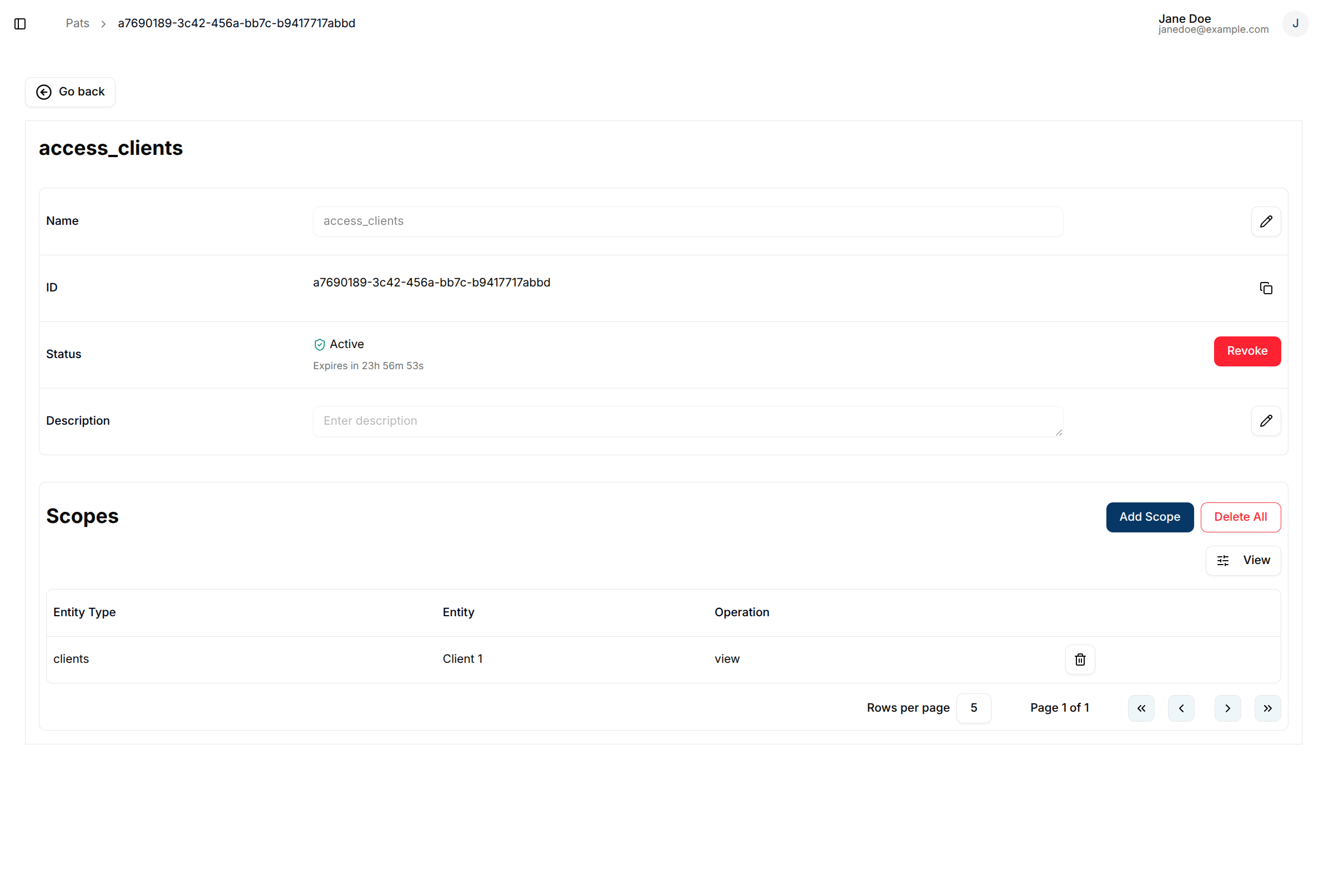
After a PAT is created, the user is redirected to the PAT detail page. Alternatively, the user can view an existing PAT by clicking on the row or the View button in the row actions.
Upon creation, the PAT secret is displayed once, allowing the user to copy it. This secret will not be shown again once the page is reloaded.
Manage scopes
Add a scope
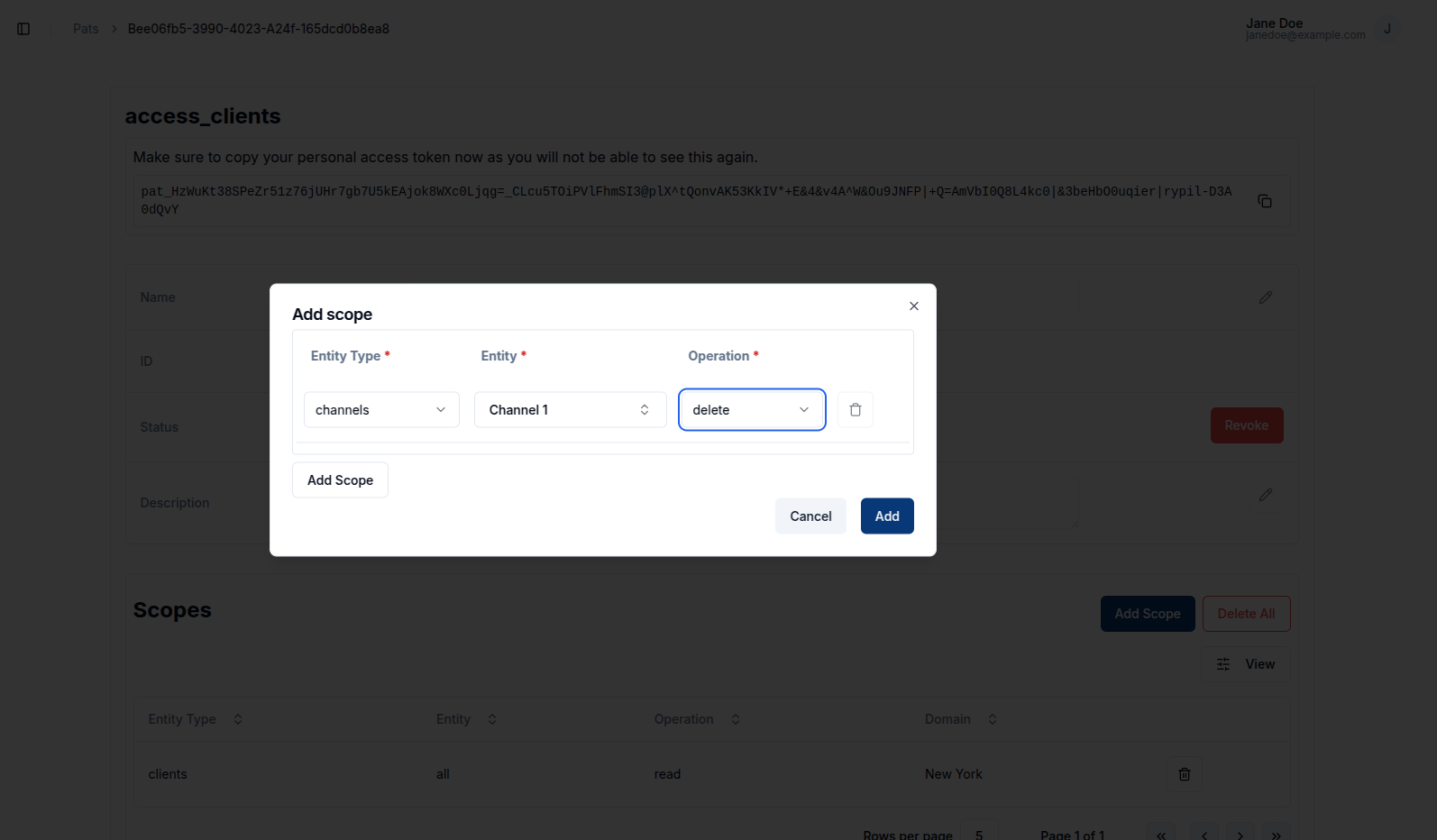
To add a new scope to an existing PAT, the user can click the Add Scope button. This allows the user to define additional permissions for the token.
Delete a scope
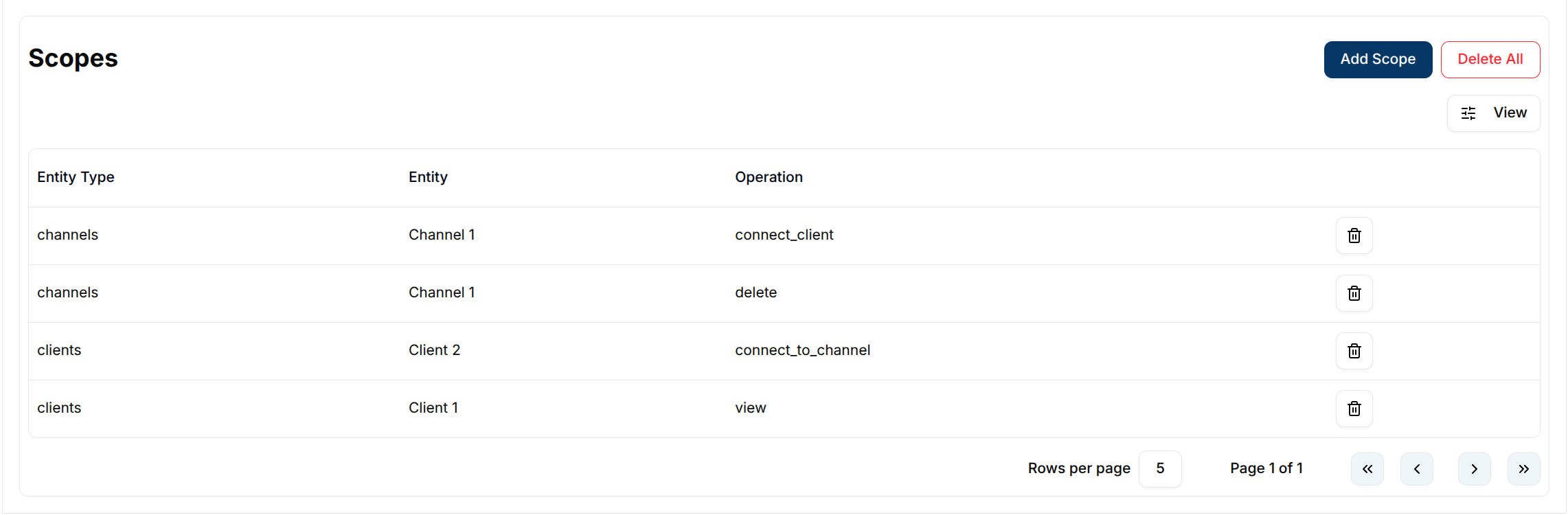
The user can delete a specific scope from a PAT by clicking the trash icon in the scopes table.
To remove all scopes associated with a PAT, the user can click the Delete All button.
Revoke a PAT
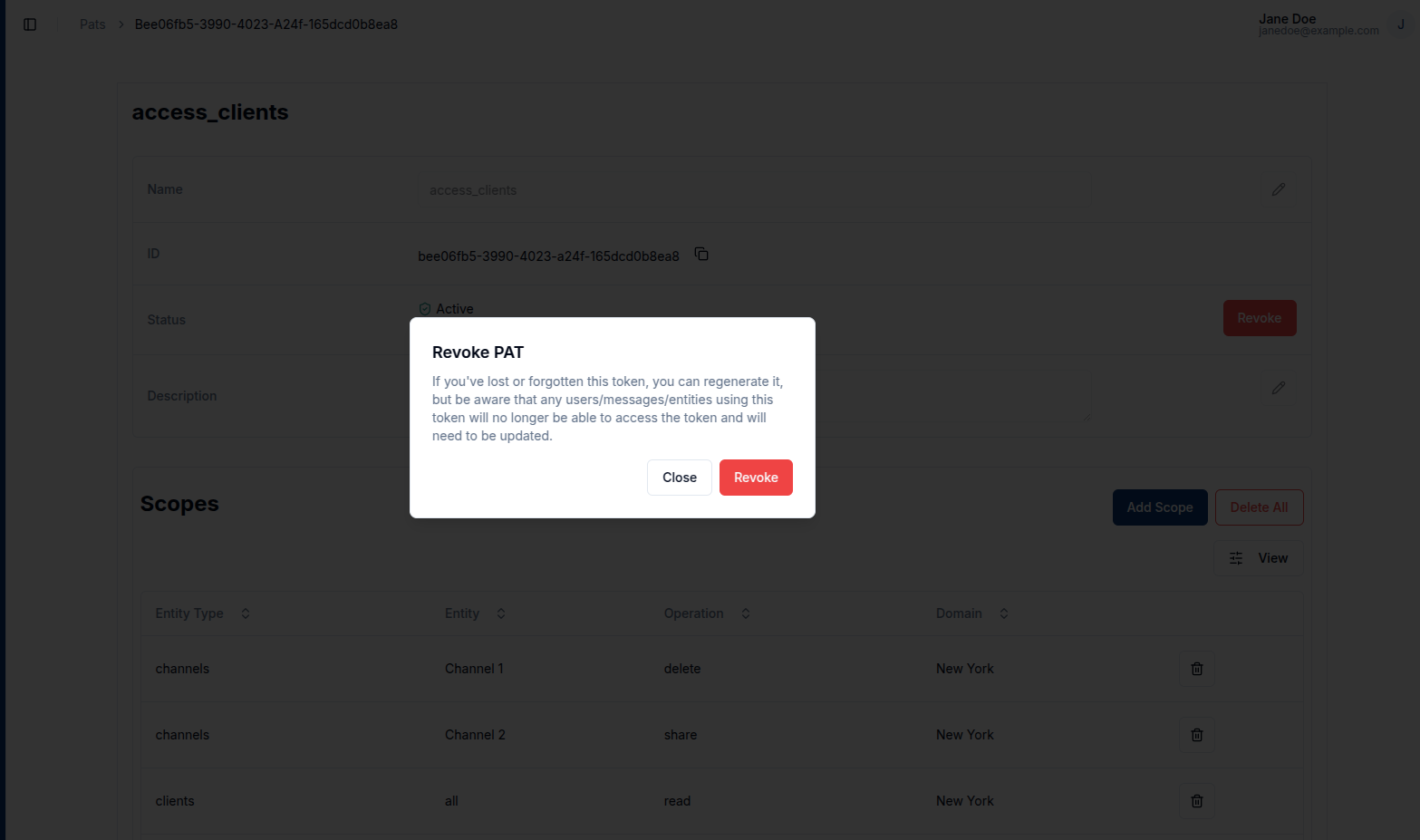
To revoke a PAT, click on the Revoke button located in the status row of the PAT detail page.
Once a PAT is revoked, it becomes inactive and can no longer be used to perform any of the scoped operations.
Regenerate a PAT
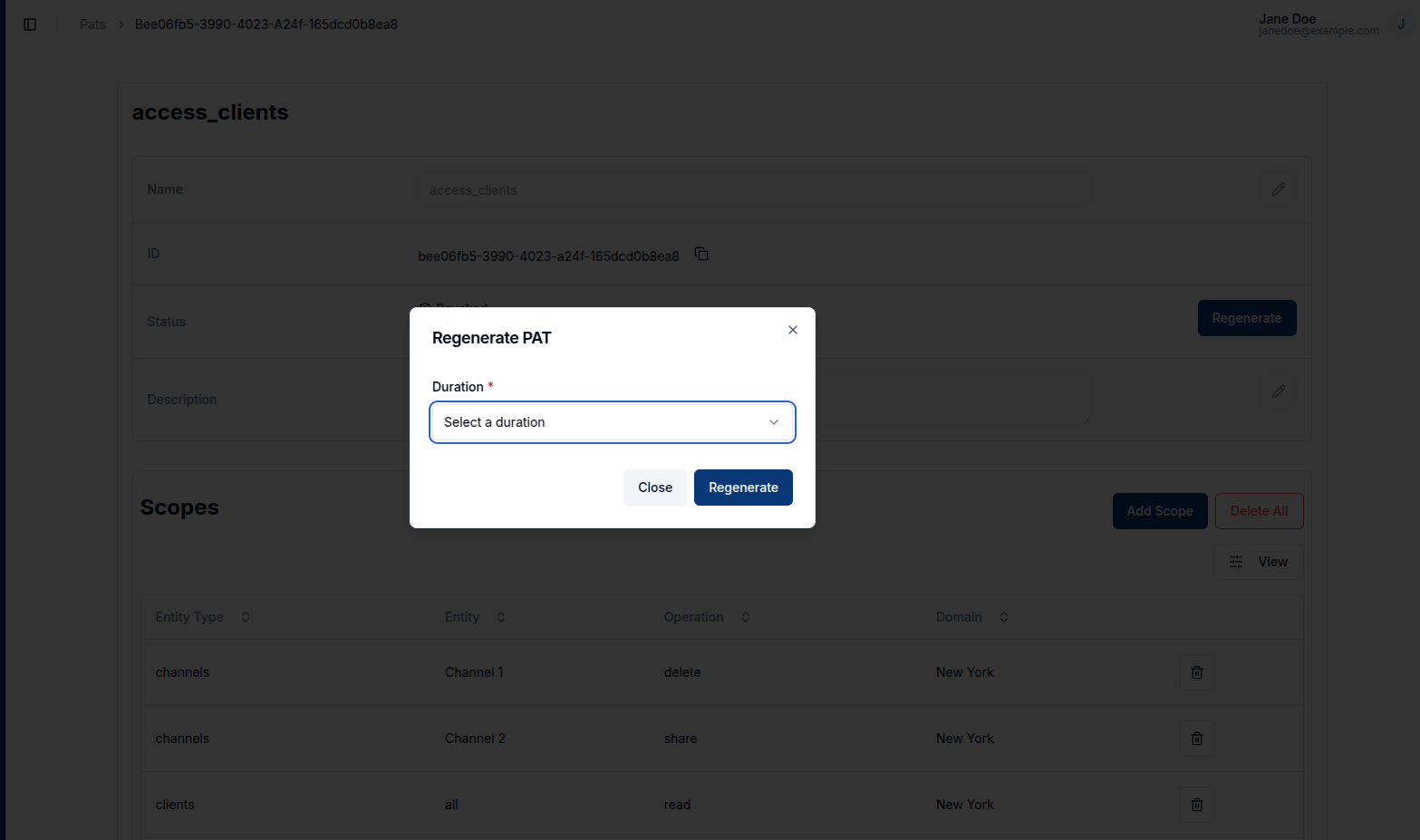
After revocation, the user can regenerate the PAT by clicking the Regenerate button. A dialog will appear, allowing the user to select a new validity duration. This creates a new secret while preserving all other PAT details such as the name, description, and scopes.
Expired tokens can also be regenerated. To do this, the user should navigate to the PATs page and change the status filter to Expired to view all expired tokens.
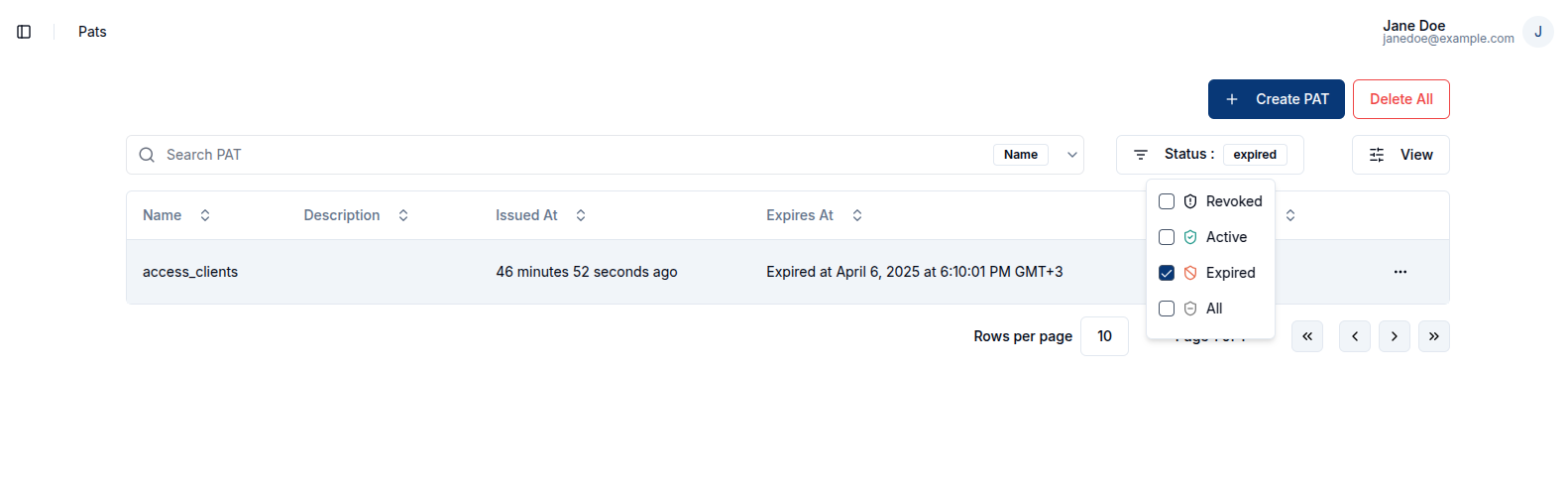
The user must then click on the expired PAT to view its details, and from there, click the Regenerate button. A dialog will appear, allowing the user to select a new duration. This process reactivates the PAT and generates a new secret, while maintaining the original configuration.
Delete a PAT
The user can delete an individual PAT by clicking Delete in the row actions.
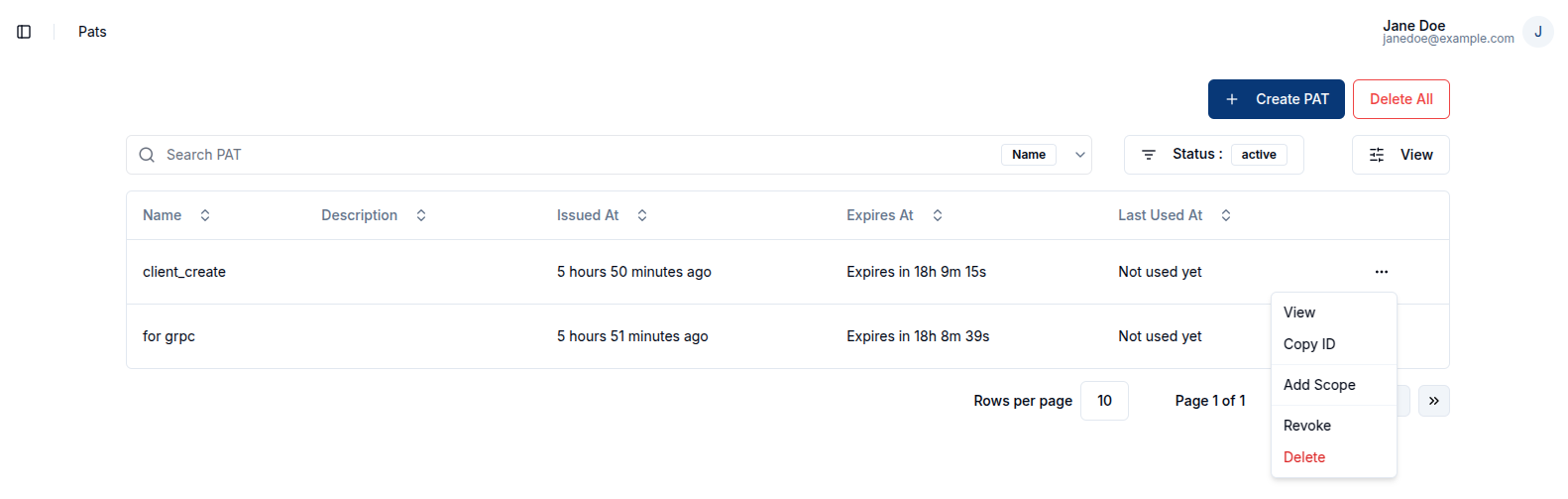
To remove all PATs, the user can click the Delete All button located on the PATs table.