
Message Views
Save filtered, column-customized views of a channel's messages, including a syntax-highlighted JSON payload viewer for JSON-format messages.
Message Views is available on Enterprise Edition deployments only.
Message Views let you save named, reusable table configurations for a channel's messages — filtered by subtopic and/or publisher, with a custom set of columns — instead of scrolling through one long, unfiltered table every time. Views are shown as tabs above the messages table, and for JSON-format messages, each view also gets a built-in Payload column with a read-only, syntax-highlighted JSON viewer.
Views are saved per channel: the set of tabs you see is scoped to whichever channel you're currently browsing.
Prerequisites
Messages only appear on the Messages page if a Rule is set up to store them in Magistrala's internal database — see Store Messages.
- For a SenML view, use the Rules Engine's Internal DB output node (or publish SenML directly via the built-in Send Message dialog).
- For a JSON view, use the Rules Engine's Internal DB (JSON) output node — see Store as JSON — or have your own device or service publish real JSON payloads to the channel.
Either way, a JSON-format view also needs a JSON-capable message writer deployed before anything persists — see Running SenML and JSON Writers Together. A JSON-format view is still fully configurable without one; it just won't have anything to show until a writer is deployed and messages start arriving.
Accessing views
Views appear on both the workspace-wide Messages page (/messages, with a channel selector) and on an individual channel's own Messages tab. Either way, you'll see a row of tabs above the table: All Messages (the default, unfiltered view) followed by any saved views, and a + button to create a new one.
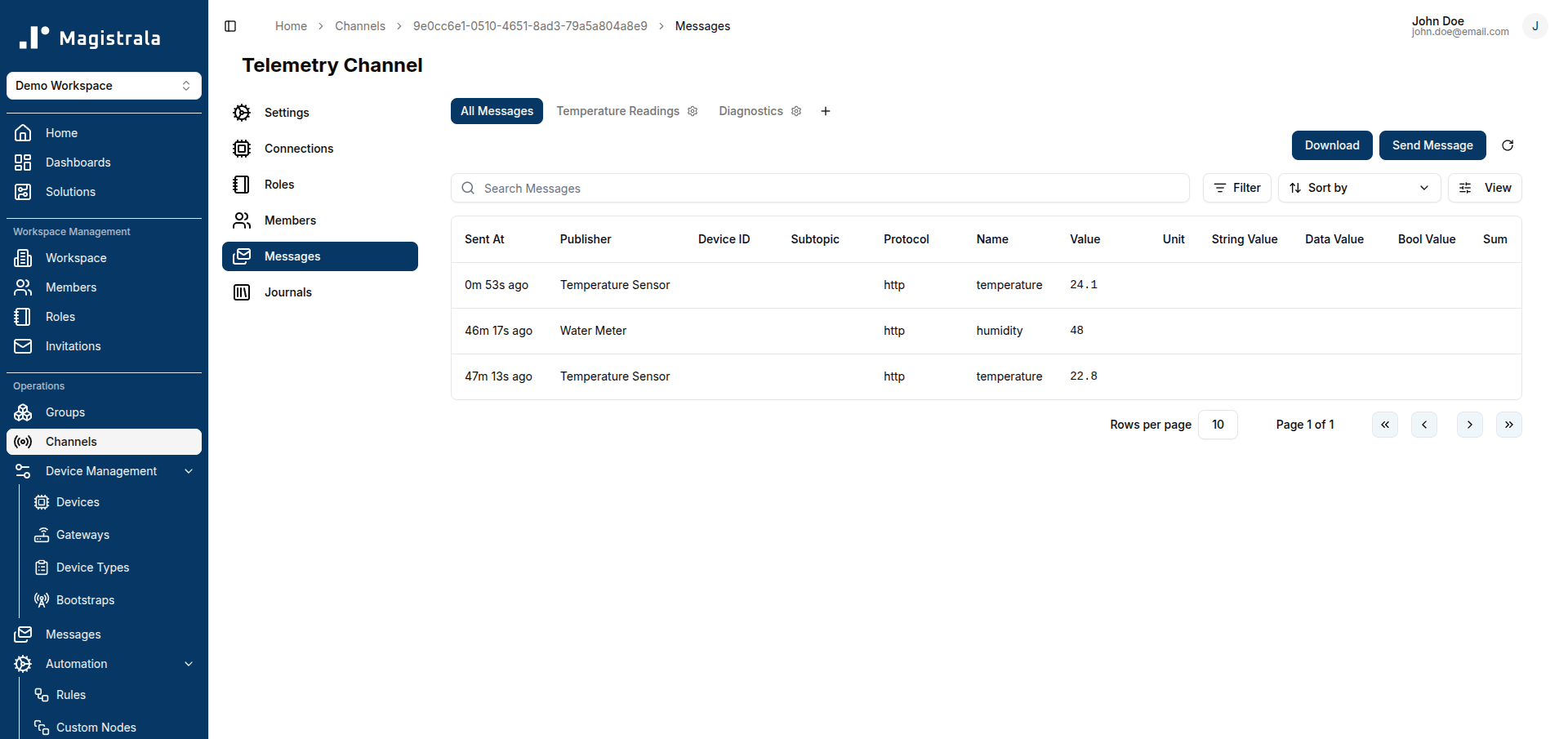
The active tab is highlighted. All Messages can't be edited or deleted — it always shows every message for the channel with the default column set.
Creating a view
Click + to open the view editor. Every view has:
- View name — required.
- Format — SenML or JSON. This determines both which columns are available and which stored messages the view can match (a SenML view only ever shows SenML-stored messages, and vice versa).
- Subtopic — optional. Restricts the view to messages published to that exact subtopic.
- Publishers — a checkbox list of clients that have published to this channel. Leave all unchecked to include every publisher; check one or more to restrict the view to just those publishers. If no clients have published yet, this section just shows "All publishers".
SenML views
A SenML view has no further configuration — its column set is fixed (Sent At, Publisher, Subtopic, Protocol, Name, Value, Unit, String Value, Data Value, Bool Value, Sum), the same columns All Messages uses.
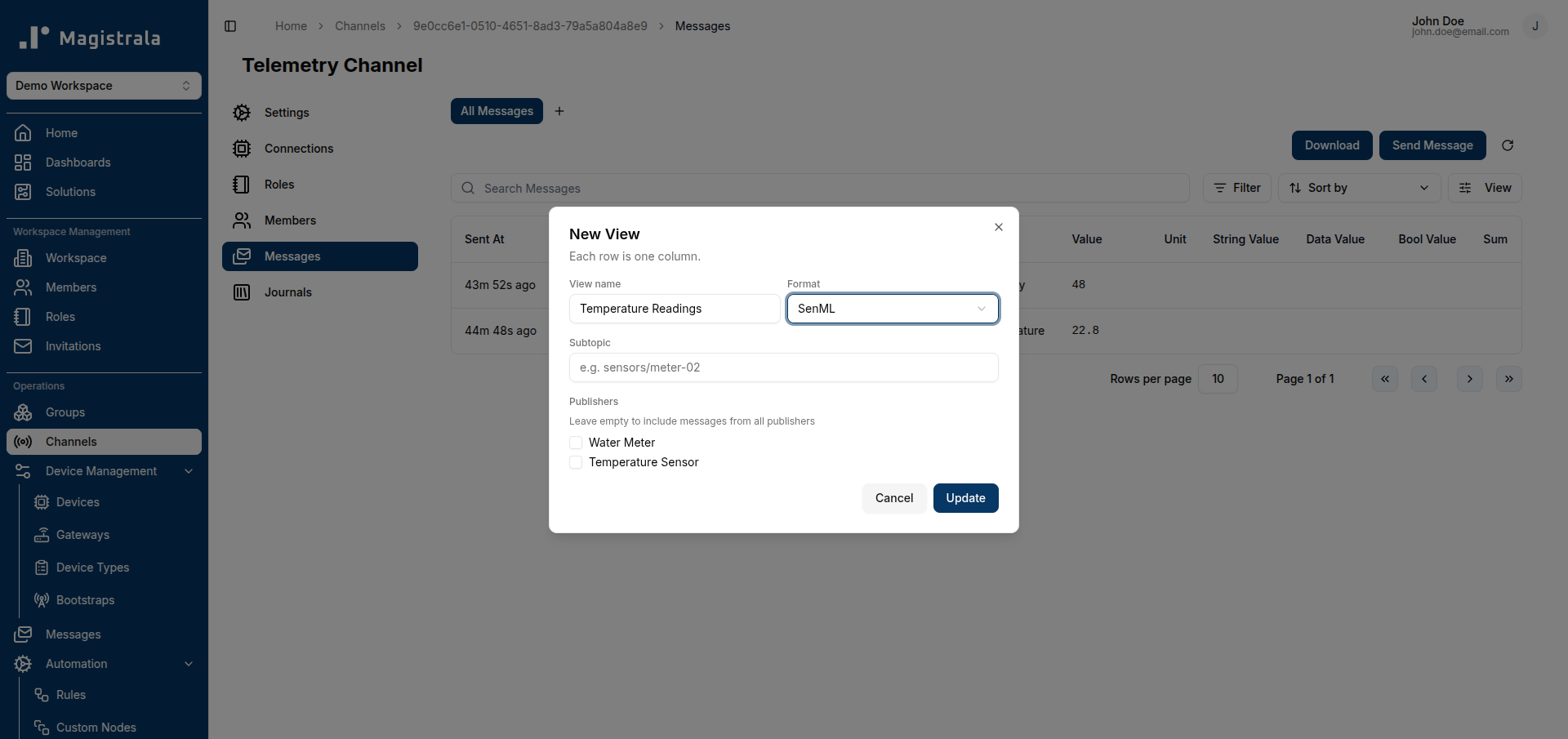
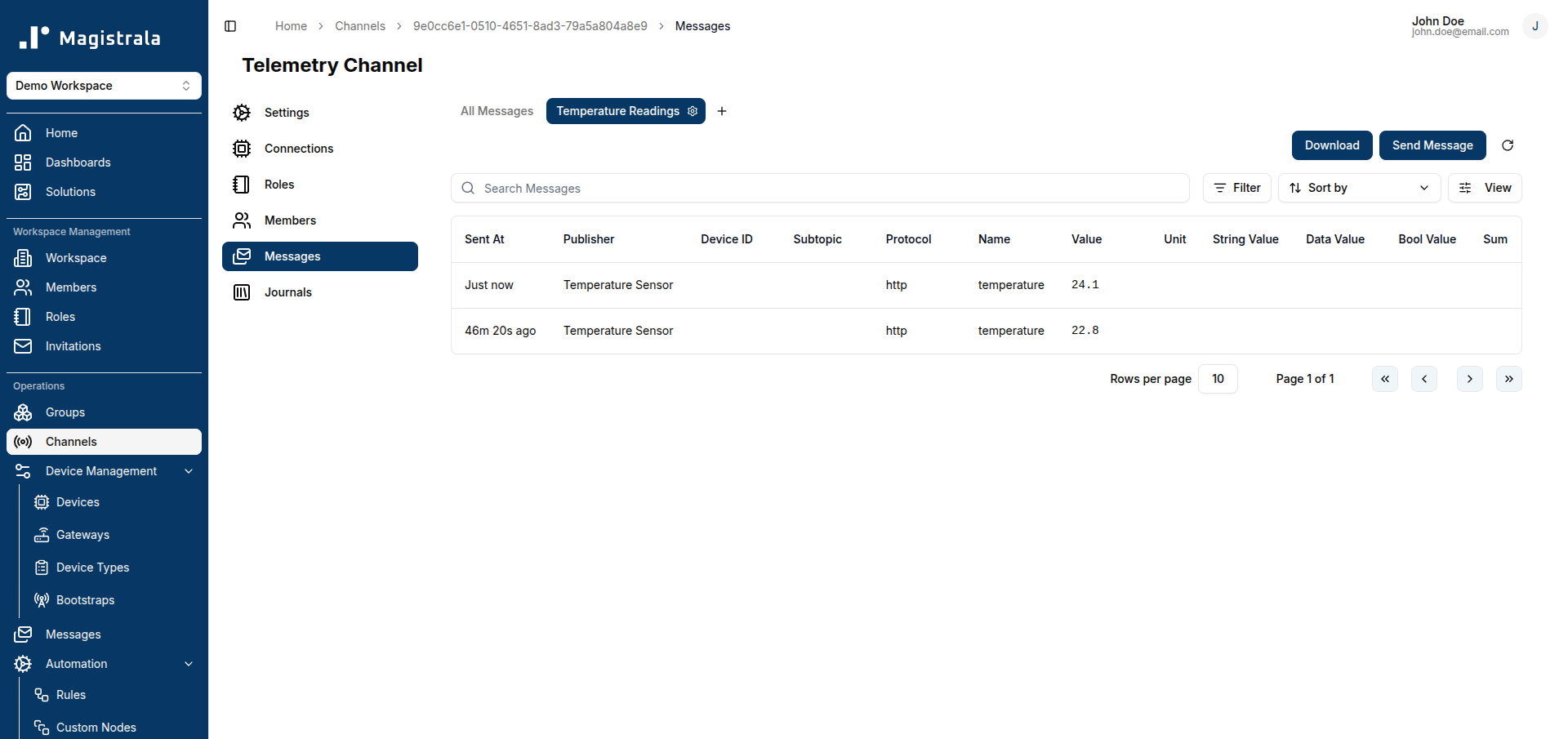
Here's a SenML view filtered to a single publisher, showing real messages:
JSON views
Choosing JSON reveals a Configure Table section for building a custom column set:
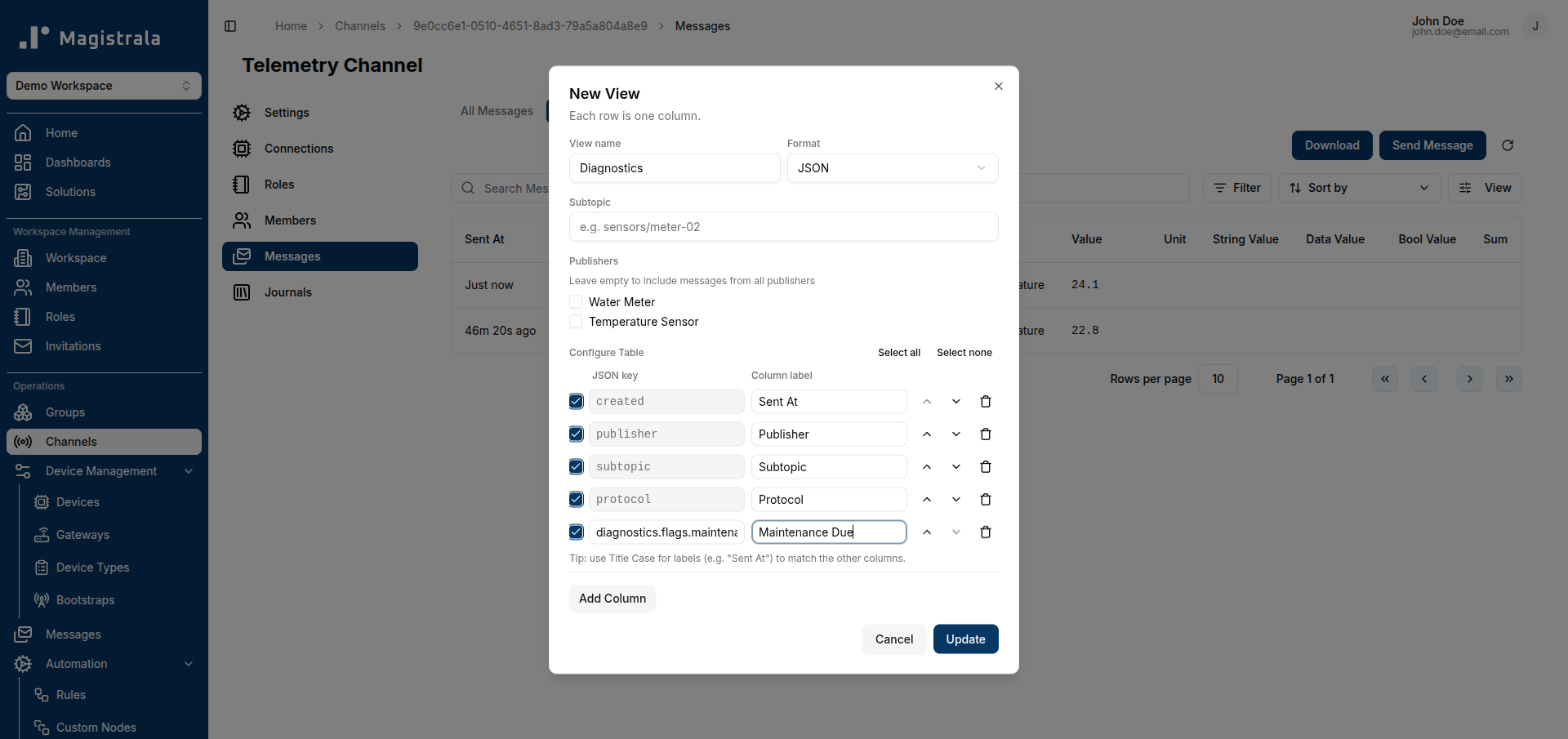
- The table starts pre-populated with rows for the same base fields SenML views use (created, publisher, subtopic, protocol) — these have a fixed key (shown in a gray box) but an editable label.
- Click Add Column to add a row for a JSON payload field. Enter a JSON key and a Column label. Keys support dot notation to reach nested fields — for example
diagnostics.flags.maintenance_duereadspayload.diagnostics.flags.maintenance_due, walking the object tree rather than doing a flat lookup. - Each row has a checkbox to include/exclude it without deleting it, up/down arrows to reorder columns, and a trash icon to remove the row entirely. Select all / Select none toggle every row at once.
- If any messages already exist for this channel, an Auto-detect from latest message button appears next to Add Column, which adds a row for every key found in the most recent message's payload that isn't already configured.
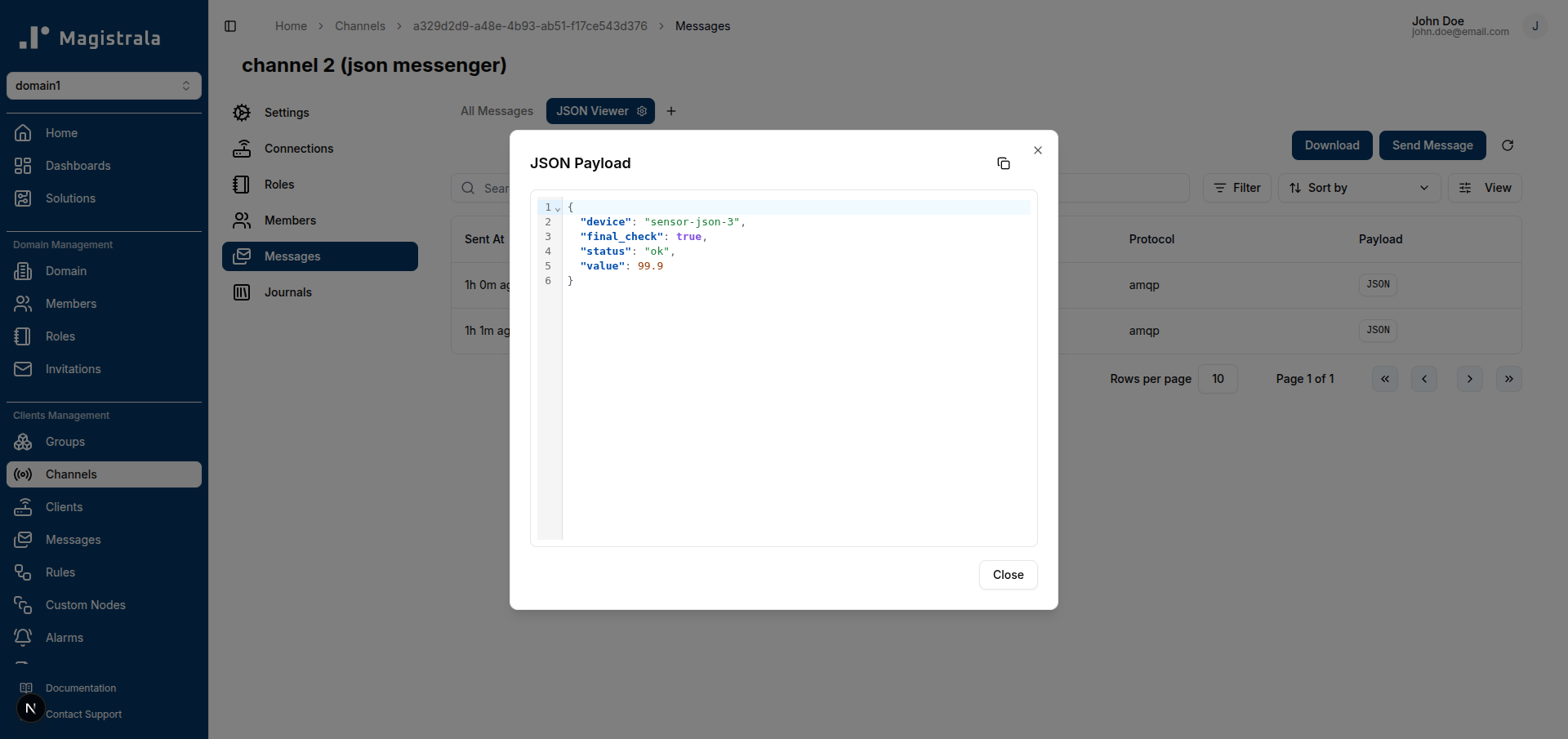
- A Payload column is always appended automatically, whether or not you configure any custom columns — there's no way to remove it. It shows a JSON button that opens a read-only, syntax-highlighted JSON viewer for that row's full payload, with a copy-to-clipboard button. The same viewer button also appears automatically in place of any configured column's cell whenever that column's value resolves to an object rather than a scalar (e.g. a column pointed at
diagnosticsinstead of a specific leaf likediagnostics.flags.maintenance_due).
Once JSON-format messages start arriving (see Prerequisites), the view populates like any other:
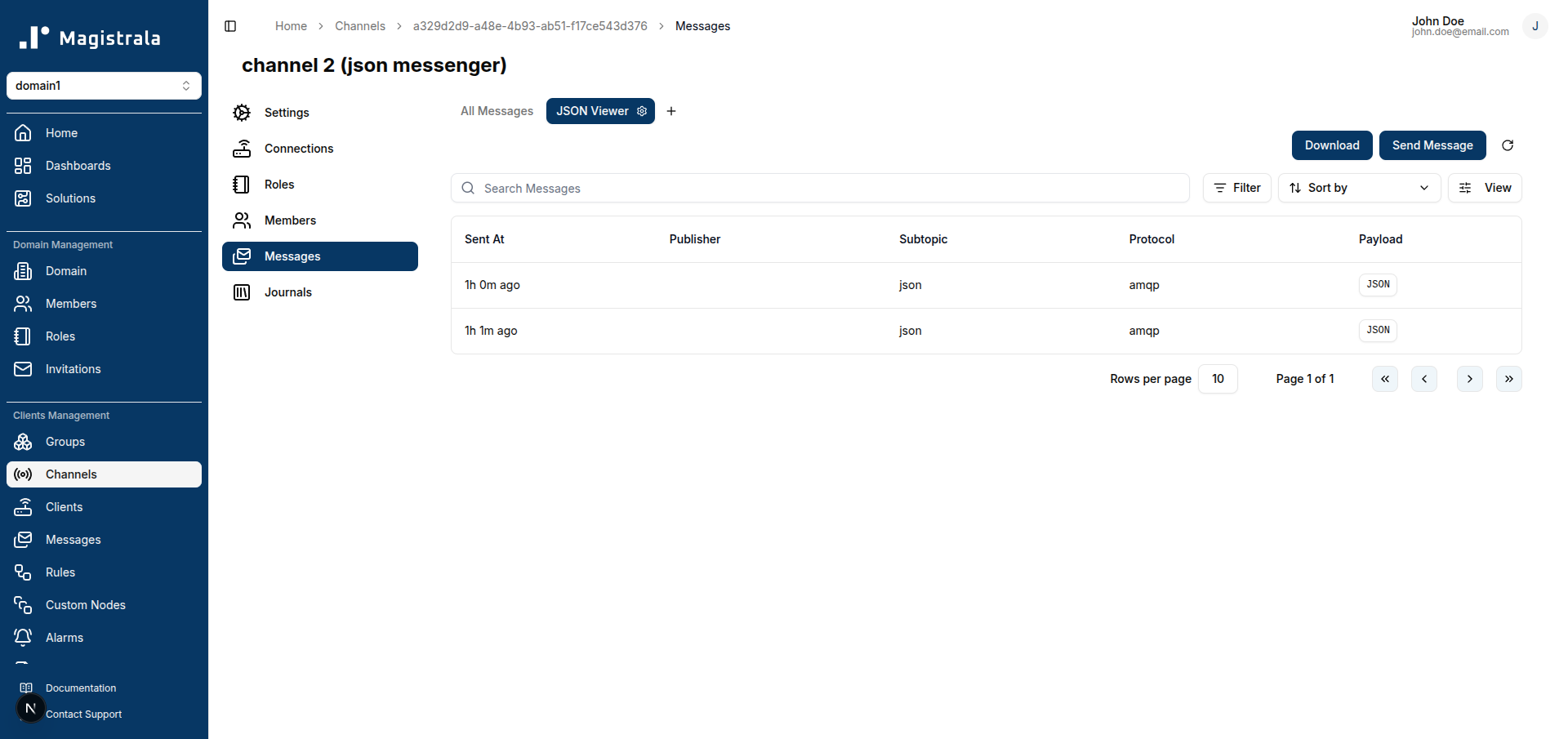
Click a row's JSON button to open the payload viewer — read-only, syntax-highlighted, with a copy-to-clipboard button in the corner:
If the channel has no JSON-format messages yet, the view is simply empty — every column, including the always-on Payload column, is still there and ready as soon as messages start flowing in.
Editing and deleting a view
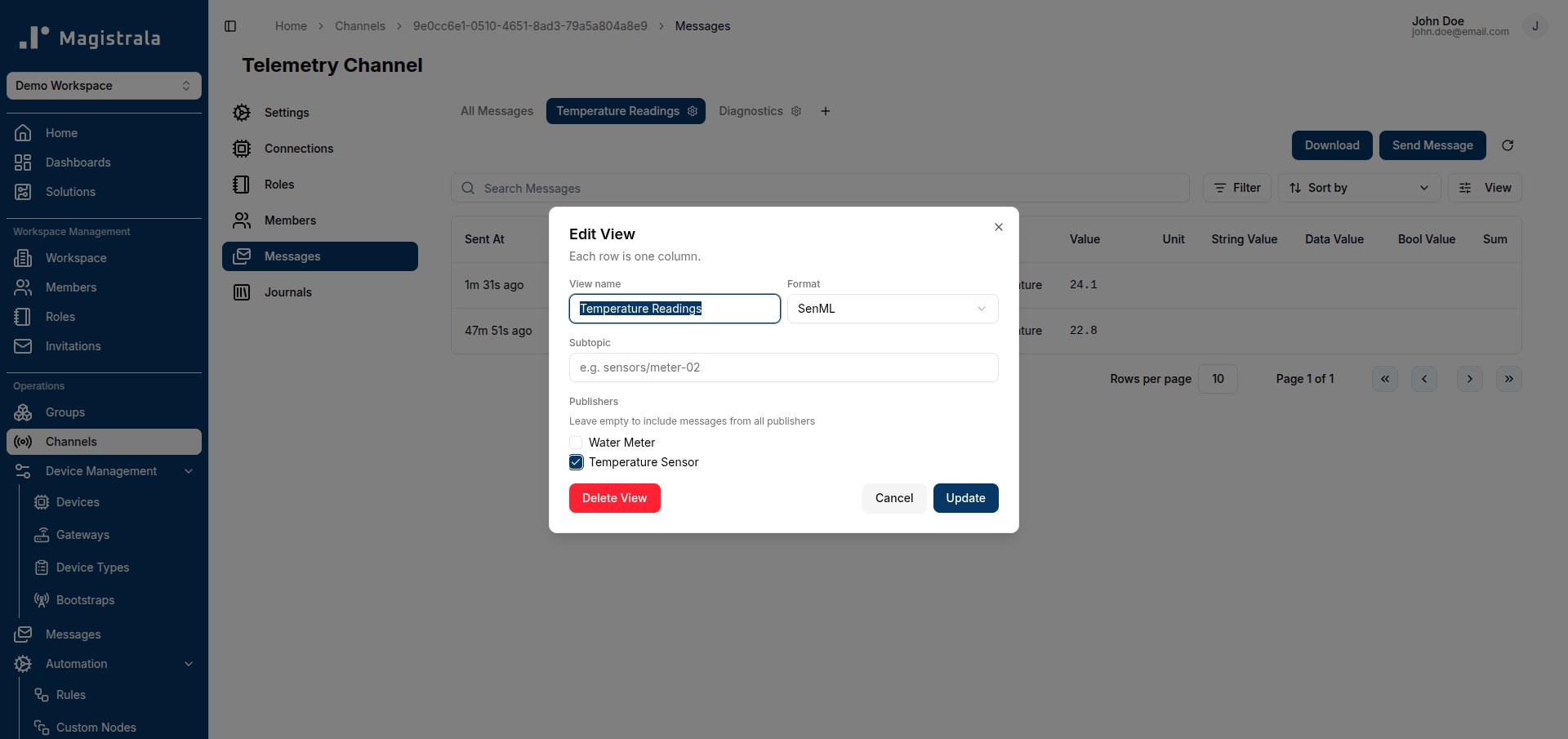
Click the gear icon on any saved view's tab to reopen the editor with its current settings, including a Delete View button. Deleting a view only removes the saved configuration — it does not affect the underlying messages.
Summary
| Field | SenML views | JSON views |
|---|---|---|
| Name, Subtopic, Publishers | Yes | Yes |
| Column set | Fixed | Configurable, dot-notation nested keys supported |
| Payload / JSON viewer | Not applicable | Always present, can't be removed |
| Auto-detect columns | Not applicable | Available once the channel has JSON messages |